Introduction
The YouTube API allows developers to access video data, channel statistics, playlists, comments, and search results directly within their own applications. Whether you're building a video gallery, a content dashboard, or an automation tool that pulls YouTube data, the first step is always the same: generating a YouTube API key through Google Cloud Console. While the process is straightforward once you know the steps, first-time users often get stuck navigating Google Cloud's interface. This post walks through the common confusion developers face and provides a clear, step-by-step guide to getting your YouTube API key.
The Problem
Developers trying to get a YouTube API key for the first time often run into a few common obstacles:
- Unfamiliar interface: Google Cloud Console has many options and menus, making it easy for first-time users to get lost while looking for the right settings.
- Confusion between projects and APIs: Beginners often don't realize that a Google Cloud "project" needs to be created first before enabling any API, leading to confusion about where to start.
- Not knowing which API to enable: Google Cloud offers many APIs, and it's not always clear that the "YouTube Data API v3" is the specific one needed for accessing YouTube data.
- Unclear credential types: Google Cloud offers multiple credential types (API keys, OAuth client IDs, service accounts), and picking the wrong one can lead to authentication errors later.
- Missing usage restrictions: Without setting proper API key restrictions, developers risk their key being used by unauthorized parties, potentially leading to unexpected usage or quota issues.
- Quota limitations going unnoticed: Many developers aren't aware that the YouTube Data API has daily quota limits, which can unexpectedly block requests once exceeded.
Without a clear step-by-step process, this simple setup task can end up taking much longer than it should.
The Solution
Here's a clear, step-by-step process to generate your YouTube API key:
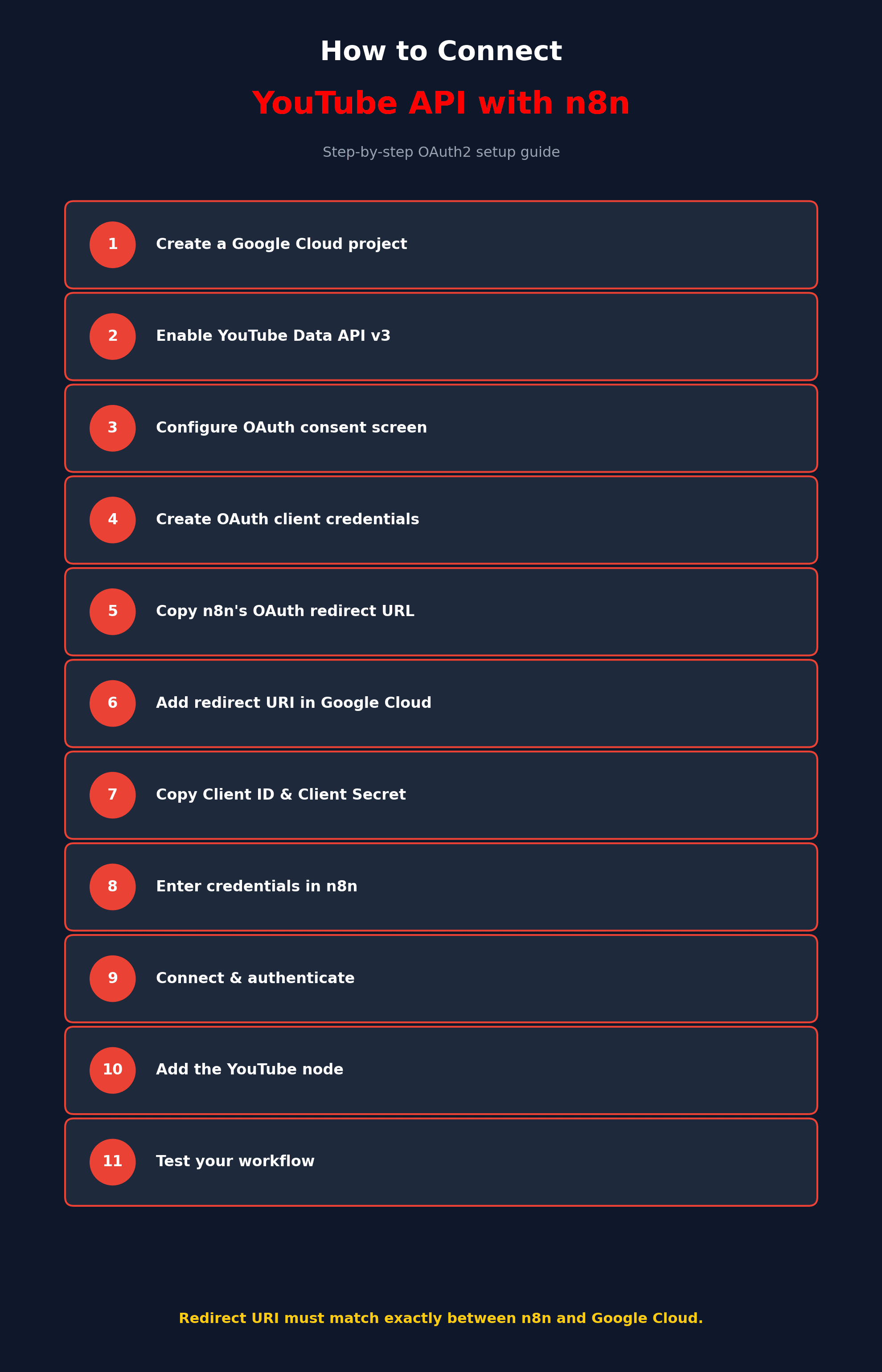
- Go to Google Cloud Console: Visit console.cloud.google.com and sign in with your Google account. This is where all YouTube API access is managed.
- Create a new project: Click on the project dropdown at the top of the page, then select "New Project." Give your project a name and click "Create." This project will hold your API credentials.
- Open the API Library: Once your project is created and selected, go to the navigation menu and click on "APIs & Services," then select "Library."
- Search for YouTube Data API v3: In the API Library search bar, type "YouTube Data API v3" and select it from the results.
- Enable the API: Click the "Enable" button on the YouTube Data API v3 page. This activates the API for use within your selected project.
- Go to Credentials: After enabling the API, navigate to "APIs & Services," then click on "Credentials" in the left-hand menu.
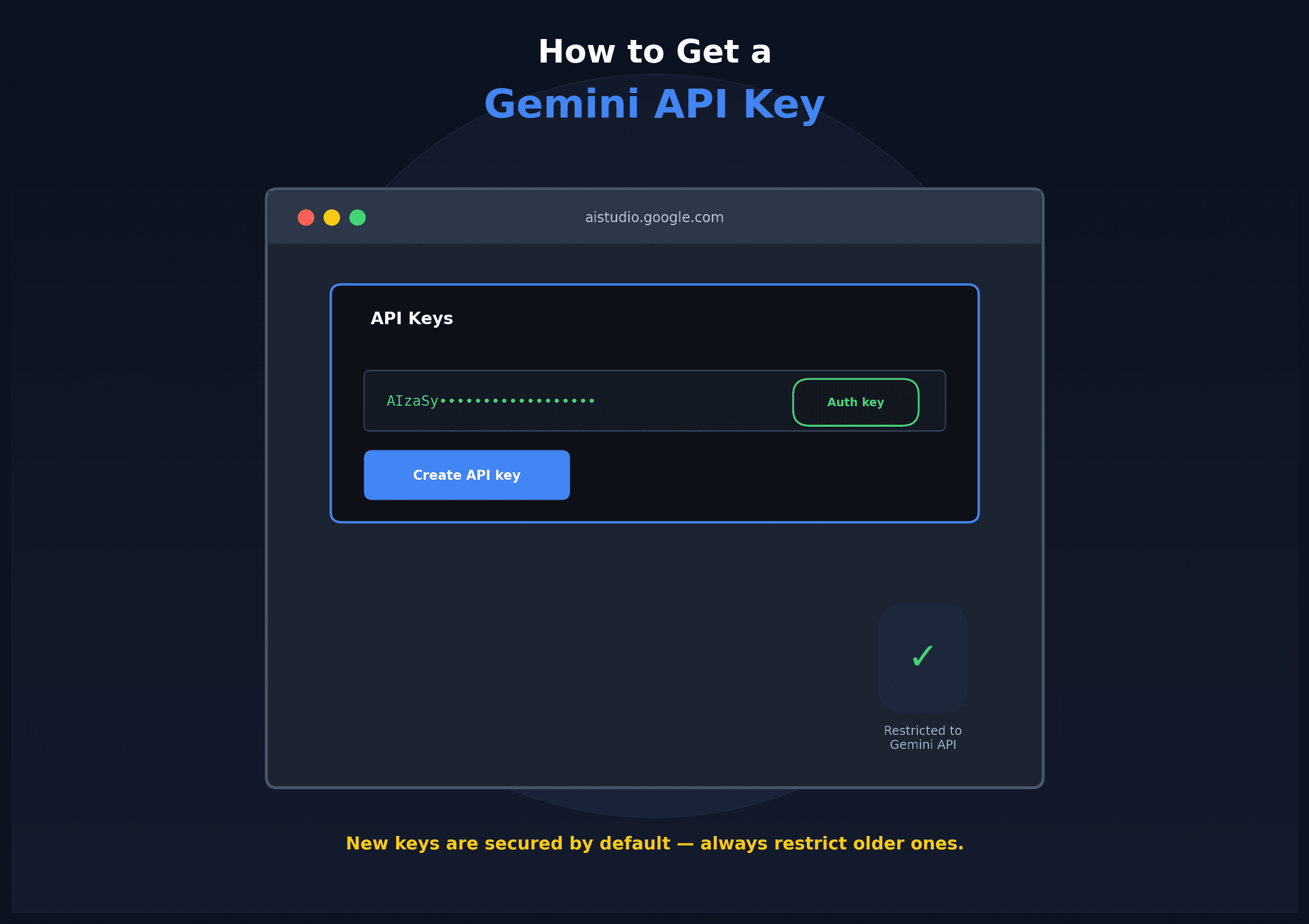
- Create an API key: Click "Create Credentials" at the top of the page, then select "API key" from the dropdown. Google Cloud will automatically generate a new API key for you.
- Copy and save your API key: Once generated, copy the API key and store it somewhere safe. You'll use this key in your application's requests to the YouTube API.
- Restrict your API key (recommended): Click "Restrict Key" to set limitations on how the key can be used. You can restrict it to specific APIs (YouTube Data API v3) and specific websites, IP addresses, or apps, which helps prevent unauthorized use.
- Test your API key: Use a simple API request, such as fetching video details or channel information, to confirm the key works correctly before integrating it into your full project.
- Monitor your quota usage: Keep an eye on the "Quotas" section under APIs & Services to track your daily usage, since the YouTube Data API has a default daily quota that can be increased if needed for larger projects.
Following these steps carefully ensures your API key is set up correctly, secured properly, and ready to use in your application.
Conclusion
Generating a YouTube API key is a simple process once you know where to look inside Google Cloud Console. By creating a project, enabling the YouTube Data API v3, generating your credentials, and applying proper restrictions, you can safely and confidently start pulling YouTube data into your own applications. Taking the extra step to restrict your key and monitor your quota usage will also help avoid unexpected issues as your project grows.